
About this guide
You can use Activation Health on its own to track your activity and health trends from Apple Health or Health Connect, or join one of the associated research studies to complete surveys and contribute your data to research. This guide covers how to use the app and answers the questions we hear most often.
Contact Us
If you have questions or concerns about study participation or issues with the app, please contact us:
Email: activation@ucalgary.ca
Table of Contents
Download & Setup
Search for "Activation Health" in the App Store (iPhone, iOS 16.6 or later, iPhone 8 or newer) or Google Play (Android 8.0 or later, with Health Connect installed). The walkthrough below shows the iPhone app; the Android app has the same tabs and steps.

Look for this icon in the App Store
Getting Started
When you first open the app, it will ask permission to read data from the Apple Health app and will begin showing your activity and health trends right away. You can use the app this way on its own — joining a research study is optional.
Joining a Study
If you have been invited to a research study, open the Settings tab and tap Join a Study, then follow the steps below.
1 Enter your study code and participant ID (both provided by your study administrator) and tap "Find My Study" — or scan the QR code provided by the research team
2 Review the consent form and select "I have read and understood all the information above"
3 Set your intervention date to the date of your surgery (if applicable to your study)
4 Accept all items under the "Consent Confirmation" heading
5 Allow HealthKit permissions to let the app access your health data
Navigation
The app will automatically open on the Activity tab. On the bottom of the screen, there are four icons: Activity, Surveys, Status, and Settings. Tap each icon to access the associated tab and information.
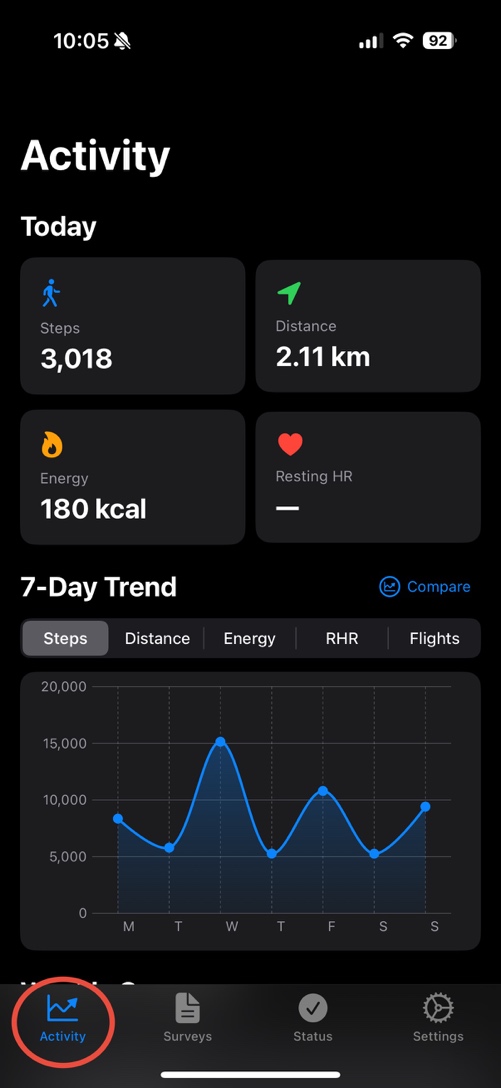
The navigation bar at the bottom of the screen
Activity Tab
The Activity tab provides information pulled from the Health app on your iPhone. Summaries of the data being used for research purposes are shown on this screen.
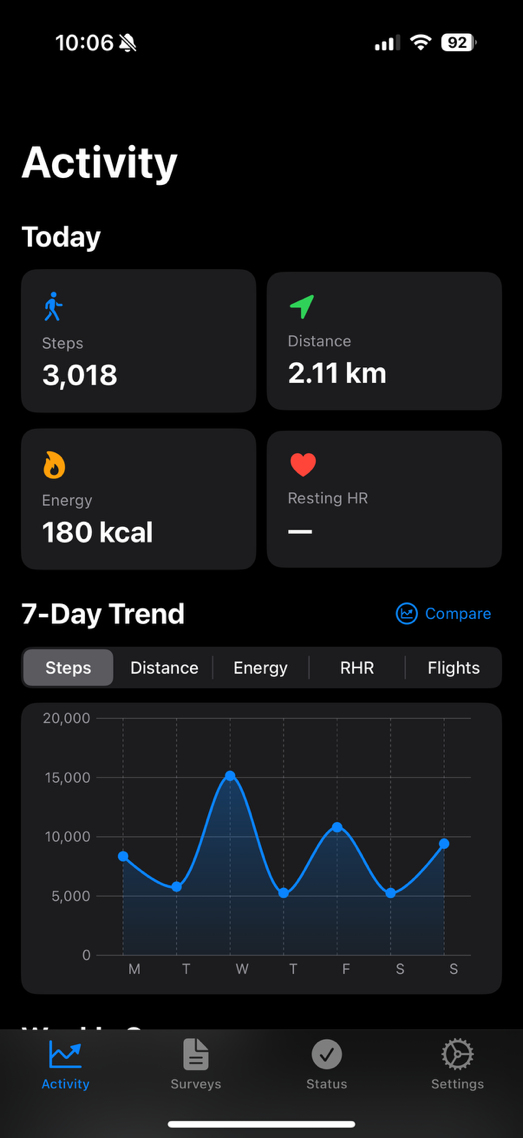
Daily metrics and 7-day trends
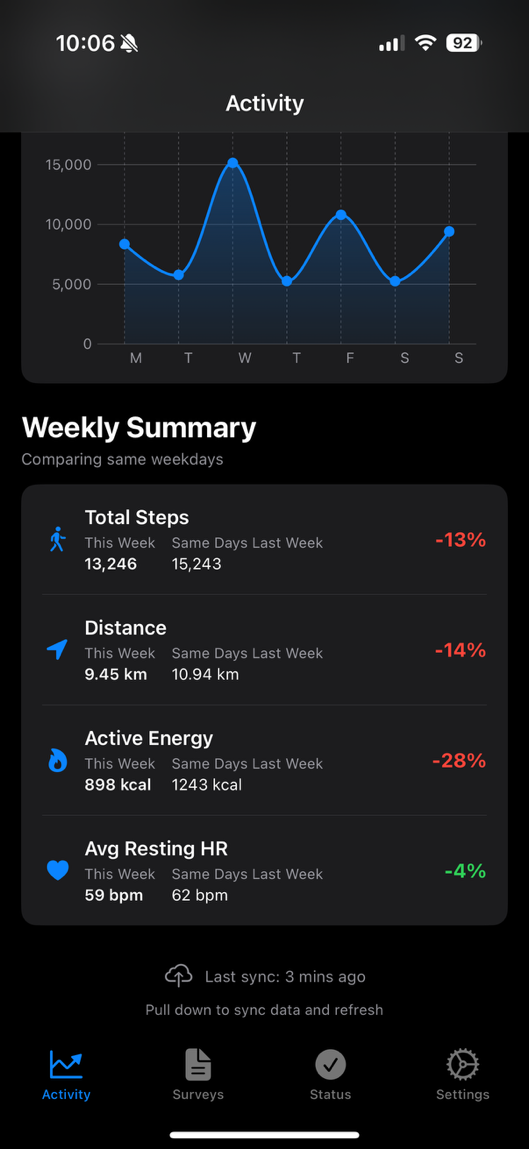
Weekly summary with comparisons
Mobility Metrics
- Steps
- Distance
- Active Energy
- Resting Heart Rate
7-Day Trends
View trends for steps, distance, energy, resting heart rate, and flights of stairs climbed.
Select "Compare" on the top right to show a comparison to data from the week prior.
Weekly Summary
See your total steps, distance, active energy, and average resting heart rate for the period. Percentages represent increases or decreases compared to a reference period.
Tap the calendar icon in the top right to choose how your data is compared:
- This week vs. last week
- This week vs. the same week last month
- This week vs. the same week last year
- This month vs. last month
- This month vs. the same month last year
Your selection is remembered the next time you open the app.
Surveys Tab
The Surveys tab contains all surveys you are required to complete for research purposes.
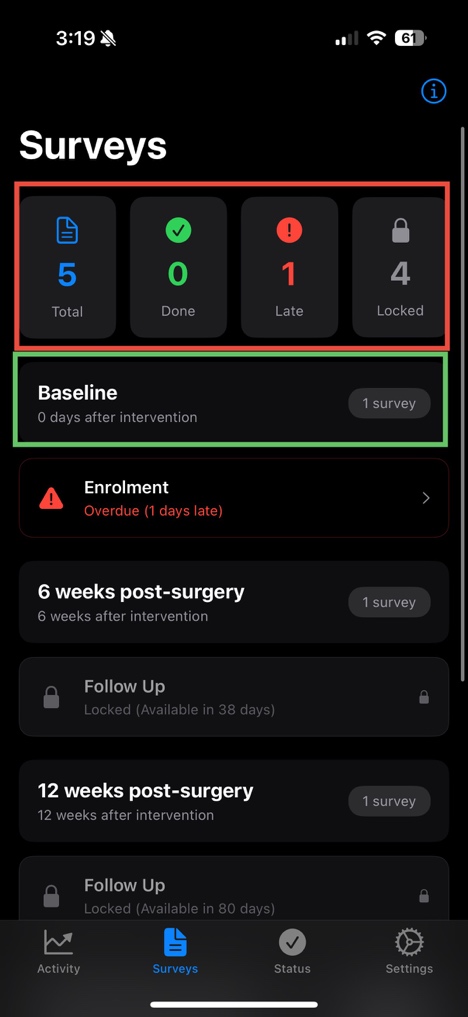
Survey status icons and timepoints
Survey Status Icons
At the top of the screen, you'll see icons showing:
- Total: Total number of surveys required for the research study
- Done: Total number of surveys you have completed
- Late: Total number of surveys that are overdue
- Locked: Surveys that will unlock when you reach the appropriate timepoint
All survey timepoints are shown below the status icons. Scroll down to see all timepoints. To access a survey, tap on it. This will take you to Qualtrics, a University of Calgary approved research survey portal.
Status Tab
The Status tab shows if you are actively participating in a study. It also displays the last time your mobility data was synced with the research server.
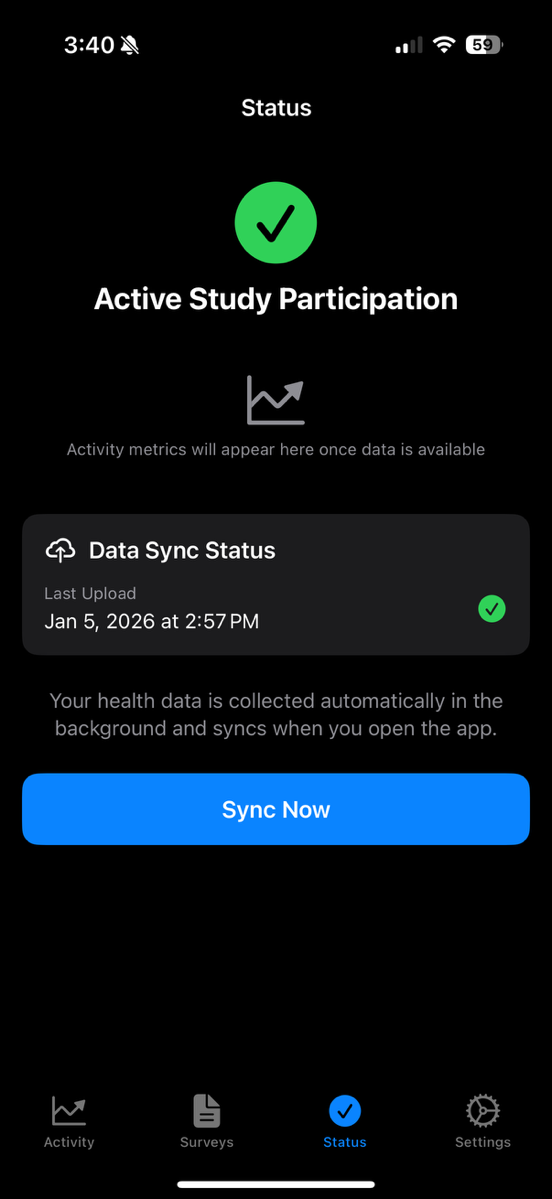
Study participation and sync status
Syncing occurs automatically on a regular basis. You do not need to manually sync your data, but you can tap "Sync Now" to trigger a manual sync if desired.
Settings Tab
If you have not joined a study, the Settings tab shows a Join a Study option you can use to enroll at any time. Once enrolled, the tab contains your study information including study code, participant ID, enrollment date, and intervention date. You can also review the research consent form and manage notification settings.
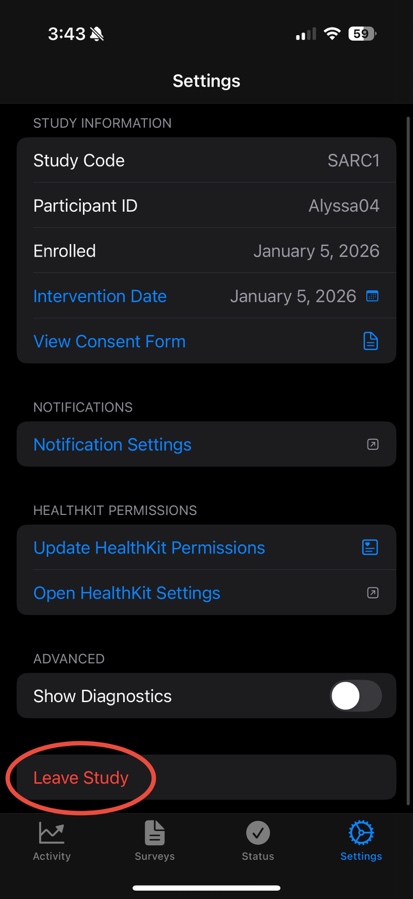
Study information and app settings
Key Features
- Intervention Date: If you did not set an intervention date during registration, or need to change it, you can do so here.
- HealthKit Permissions: Select "Open HealthKit Settings" to manage data sharing permissions. You'll be redirected to the Health app where you can turn data sharing on or off. If actively participating, please ensure all data sharing is enabled.
- Leave Study: If you decide to withdraw from the study, you can select this option. Please notify the research team if you decide to leave.
Frequently Asked Questions
1. What data does the app collect?
The app collects HealthKit data with your explicit permission, including:
- Mobility metrics: Walking speed, step length, gait asymmetry
- Gait metrics: Stair ascent/descent speed, six-minute walk test
- Cardiovascular metrics: Heart rate, heart rate variability, VO2 max, blood pressure
- Activity metrics: Steps, distance, flights climbed, active energy
- Sleep analysis: Duration and sleep stages
You will also be asked to complete PROMIS surveys at scheduled timepoints during your participation.
2. Is my data secure and private?
Yes. Data security and privacy are our top priorities:
- Anonymization: Participant IDs contain no personally identifiable information
- Encryption: All data is transmitted using HTTPS with TLS 1.2+ encryption
- Health data: Read from Apple Health or Health Connect on your phone, with your permission, and uploaded securely to our servers
- Secure server: Data is stored on University of Calgary institutional servers with database encryption
- Limited access: Only authorized research team members can access study data
3. How do I grant HealthKit permissions?
When you first enroll, the app will request access to specific HealthKit data types:
- Complete the consent form in the app
- Review the HealthKit permission request
- Select "Turn All Categories On" or individually enable each data type
- Tap "Allow" to grant permissions
You can change these permissions later in the iOS Health app under Sources.
4. Why isn't my data uploading?
If you notice data isn't uploading automatically:
- Check Background App Refresh: Go to Settings → General → Background App Refresh and ensure it's enabled for Activation Health
- Check Low Power Mode: Background uploads are disabled in Low Power Mode
- Check internet connection: The app requires an active internet connection to upload data
- Check HealthKit permissions: Verify you've granted permission for all required data types in the Health app
- Manual sync: Open the app, go to the Status tab and tap Sync Now
5. How do I complete PROMIS surveys?
The app will notify you when surveys are due:
- Open the notification when you receive it, or open the app and tap the Surveys tab
- Tap on the survey you want to complete
- The survey will open in your web browser
- Complete the survey and submit it
- Return to the app - it will automatically mark the survey as completed
6. Can I withdraw from the study?
Yes, participation is completely voluntary, and you may withdraw at any time:
- Contact the research team at activation@ucalgary.ca to inform them of your decision
- Open the app and go to the Settings tab
- Tap the "Leave Study" button
- Confirm your withdrawal decision
- To have your previously collected data deleted, see Requesting deletion of your data
Withdrawing will not affect your medical care in any way.
7. What devices are supported?
The app requires:
- iPhone: iOS 16.6 or later, iPhone 8 or newer (for gait metrics)
- Android: Android 8.0 or later with Health Connect installed
- Watch or fitness tracker: Optional. Anything that writes to Apple Health or Health Connect is picked up automatically; without one, the phone must be carried to record activity
8. The app crashes or won't open. What should I do?
Try these troubleshooting steps:
- Force quit the app and reopen it
- Restart your iPhone
- Check for iOS updates in Settings → General → Software Update
- Delete and reinstall the app (your enrollment will be preserved on the server)
- If issues persist, contact us at activation@ucalgary.ca
9. I forgot my study code or participant ID. What do I do?
Contact the research team at activation@ucalgary.ca. They can look up your credentials securely. Never share your study code or participant ID with anyone other than the research team.
10. What privacy and ethical policies are in place?
All research studies using Activation Health follow strict ethical guidelines and data protection standards:
- REB Approval: University of Calgary Research Ethics Board
- Informed Consent: REB-approved consent process completed in the app
- Data Minimization: Only the metrics approved for each study are collected
- Participant Rights: Right to withdraw, access data, and request deletion
For more information: University of Calgary Ethics Resources
11. Do I have to join a study to use the app?
No. The app works on its own — once you grant HealthKit permissions, the Activity tab tracks your steps, distance, energy, heart rate, and trends without joining a study. Research features such as scheduled surveys become available only after you join a study. You can join one at any time from Settings → Join a Study, either by entering the codes provided by the research team or by scanning a QR code they send you.